
Crafting the Best Work from Home Set Up for Productivity
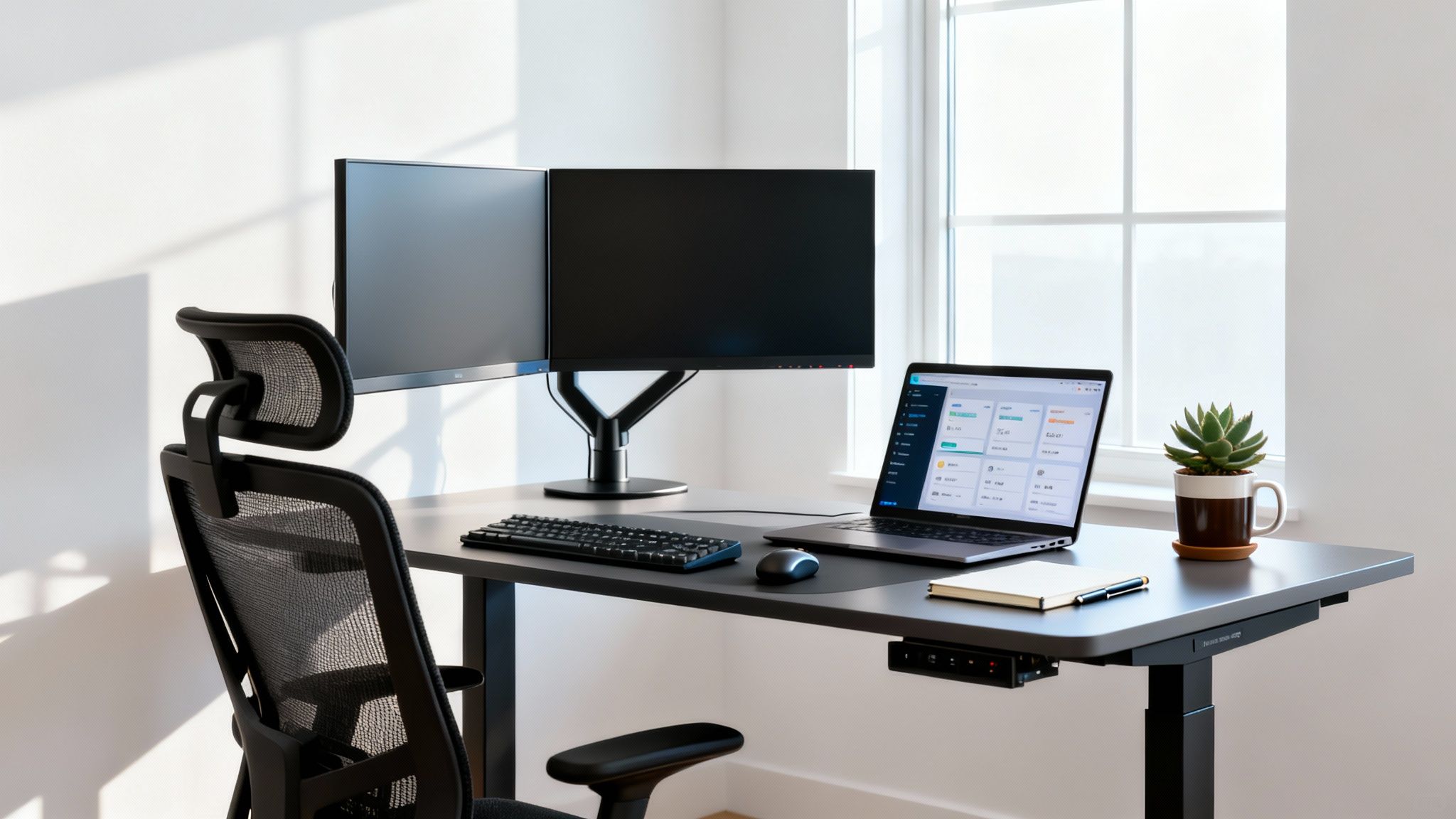
A truly great work-from-home setup is more than just a desk in a corner. It’s a dedicated space that marries ergonomic comfort with reliable tech, all wrapped in a design that helps you stay focused. This is your command center—an environment built for productivity and well-being, where the right chair and tools keep you connected and protect that crucial line between your work and personal life.
Your Blueprint for a High-Performance Home Workspace
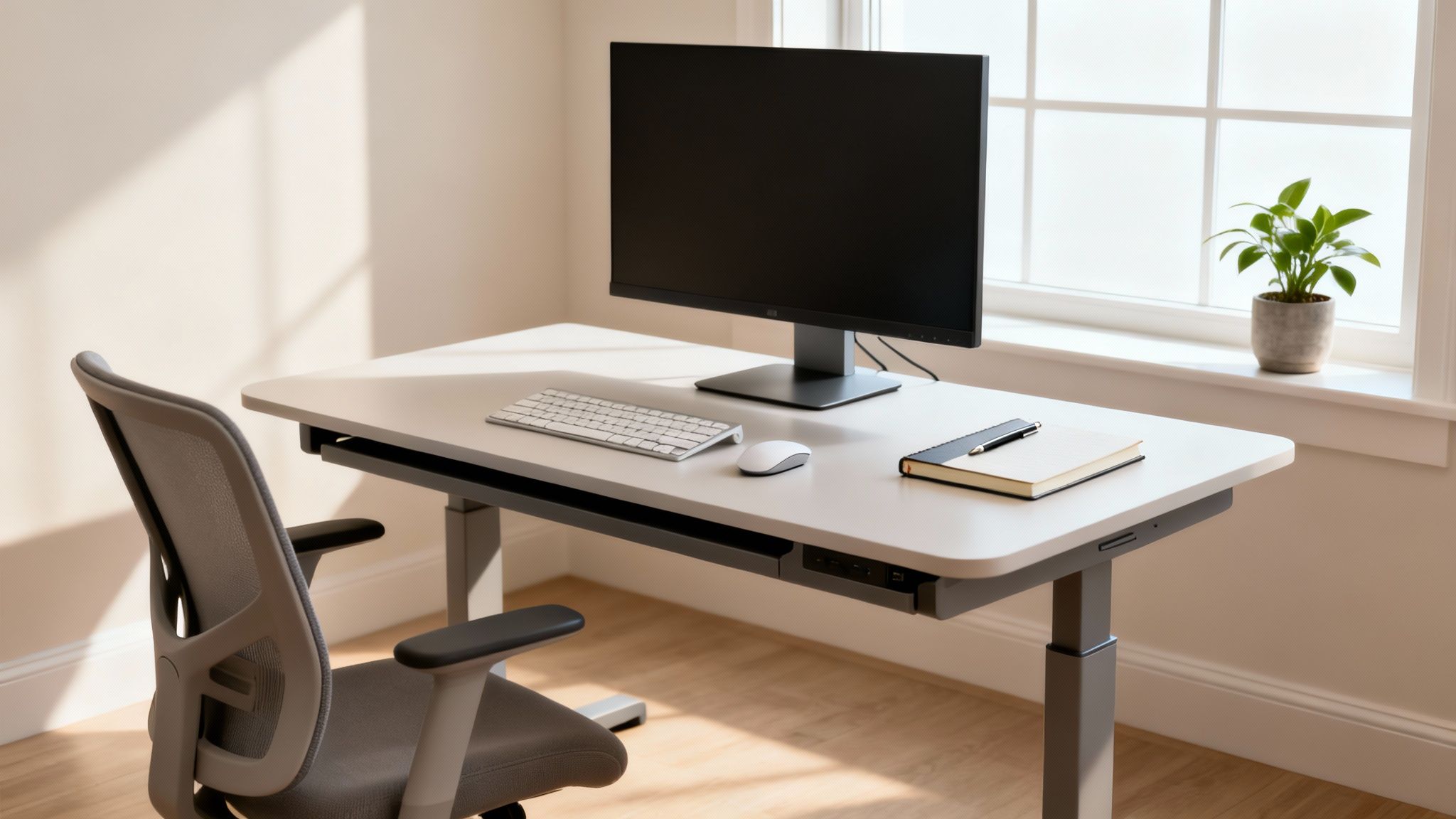
Let's be real—the kitchen table was a temporary fix, not a permanent solution. To thrive long-term while working remotely, you need to create a space that fuels your focus instead of draining your energy. This isn't about splurging on the most expensive gear; it's about making smart, intentional choices that build your personal productivity hub.
The aim is to design a workspace that helps you do your best work, day in and day out. If you're looking for some visual inspiration to get the creative juices flowing, you can always find some fresh office interior designing ideas to spark your imagination.
The Three Pillars of a Successful Setup
I've learned over the years that a truly successful home office stands on three essential pillars. If you neglect one, the whole structure can feel wobbly, impacting your productivity and even your health. We’re going to dig into each one.
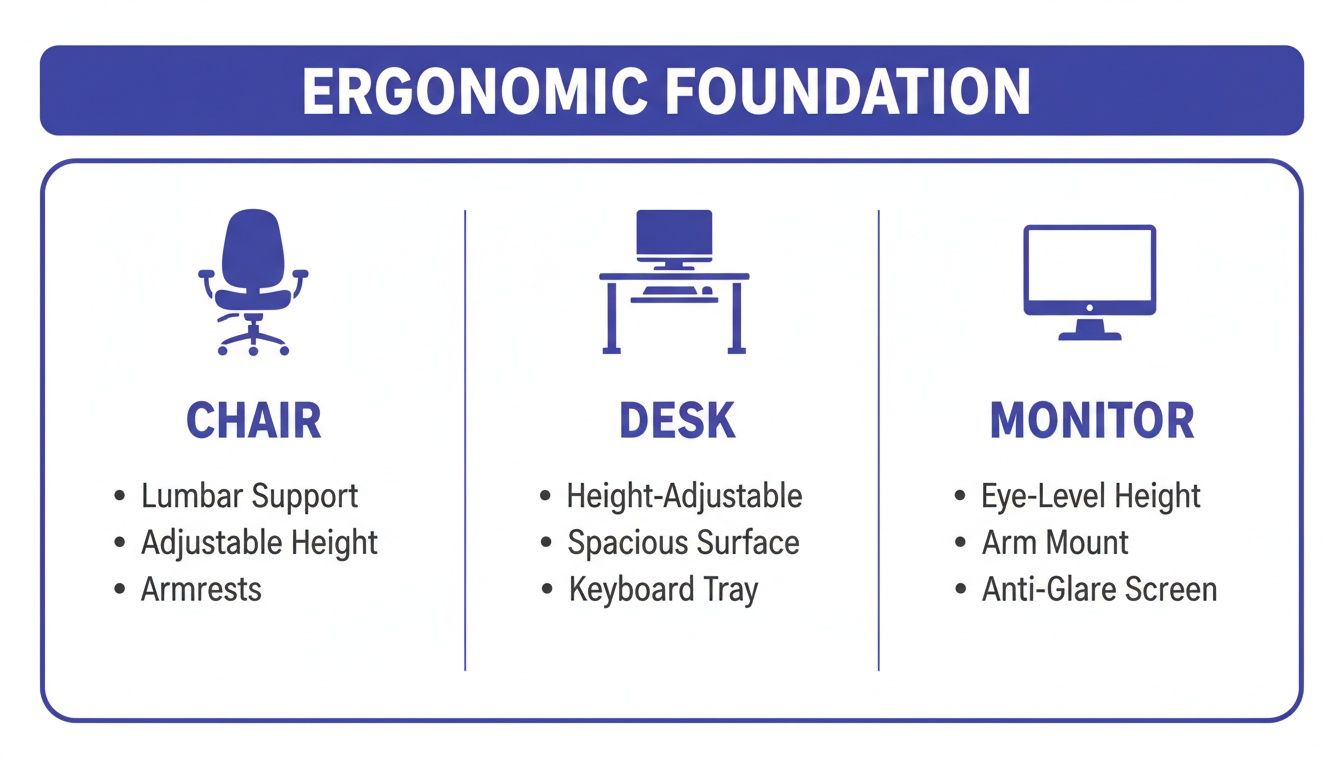
- An Ergonomic Foundation: This goes way beyond just a comfy chair. It’s about creating a complete system that supports your body throughout the workday, helping you sidestep pain and burnout.
- A Reliable Tech Arsenal: Think of your hardware and internet connection as your lifeline. A solid tech stack means fewer frustrating interruptions, keeping you in the flow and working efficiently.
- A Mindful Environment: This is all about setting clear physical and mental boundaries between your job and your home life. It's absolutely critical for maintaining balance and avoiding burnout in the long run.
Investing in your workspace isn't just a feel-good measure; it delivers real results. The State of Remote Work report found that remote employees can see a 35% to 40% productivity increase over their in-office colleagues, largely due to fewer distractions and greater flexibility.
You don't have to overhaul everything at once. Making small, thoughtful changes to your lighting, organization, and equipment can lead to huge gains in both your output and your overall well-being. This guide is your roadmap to getting it right.
Building an Ergonomic Foundation for All-Day Comfort
Let's be honest: your physical well-being is the engine that keeps your productivity running. An ergonomic setup isn't just a nice-to-have; it's a non-negotiable investment in your health. Aches, strains, and that creeping afternoon fatigue aren't just minor annoyances—they're productivity killers that build up over time. We're going to move past the generic advice and get into the nitty-gritty of building a workspace that actually supports your body for the long haul.
It all starts with the centerpiece of any office: your chair. That dining chair or stiff, non-adjustable model might feel fine for an hour, but your back will be telling a very different story after a full eight-hour day. A truly ergonomic chair is designed for movement and, most importantly, customization.
Choosing the Right Ergonomic Chair
When you're shopping for a chair, try to look beyond the price tag and focus on one thing: adjustability. This is where you get the real value. A high-quality chair should feel like an extension of your body, not some rigid box you're forced to sit in.
To really get a feel for what matters, it helps to see the top features in action. You can check out our in-depth guide on the best ergonomic office chairs to compare different models and understand what makes them tick.
At a minimum, look for these crucial features:
- Adjustable Lumbar Support: Your lower back has a natural curve, and a good chair needs to support it to stop you from slouching. The best ones let you adjust the support both vertically (up and down) and in depth (in and out).
- Seat Depth and Height: This is key. Your feet should rest flat on the floor with your knees at a 90-degree angle. You also want a small gap—about two or three fingers' worth—between the back of your knees and the edge of the seat.
- Adjustable Armrests: Your armrests should let your shoulders relax, with your elbows bent at a comfortable 90-degree angle. Look for armrests that adjust for height, width, and even pivot to match where your arms naturally want to rest.
Beyond the Chair: The Desk and Monitor
Your chair is just one part of the puzzle. Your desk and monitor placement are just as critical for creating a setup that won't leave you sore. It's the relationship between these three items that really dictates your posture all day long.
A sit-stand desk can be a complete game-changer for your energy and focus. Seriously. Studies have shown that simply alternating between sitting and standing can slash back pain by over 50%. Even standing for just 30-60 minutes every hour boosts blood flow and helps fight off that lethargy that creeps in from sitting too long.
Monitor placement is another one of those details that people often get wrong. Incorrect positioning is one of the main causes of "tech neck"—that painful strain in your neck and shoulder muscles.
The Ergonomic Sweet Spot: Position your monitor so the top of the screen is at or just slightly below eye level. It should also be about an arm's length away from you. This simple alignment keeps your neck in a neutral, relaxed position, so you aren't hunching forward or craning your neck up.
Before we move on, let's put the core equipment into a simple checklist. These are the foundational pieces that make the biggest difference in your daily comfort and long-term health.
Essential Ergonomic Equipment Checklist
| Equipment | Key Feature to Look For | Why It Matters |
|---|---|---|
| Ergonomic Chair | Full adjustability (lumbar, seat, armrests) | Prevents back pain and poor posture from prolonged sitting. |
| Sit-Stand Desk | Electric, with memory presets | Reduces back strain and boosts energy by varying your posture. |
| External Monitor | Adjustable height and tilt | Stops you from hunching, preventing "tech neck" and shoulder strain. |
| Ergonomic Keyboard | Split or curved design | Encourages a natural hand and wrist position, reducing RSI risk. |
| Ergonomic Mouse | Vertical or contoured shape | Fits your hand's natural resting position to minimize wrist strain. |
Getting these core pieces right creates the perfect foundation. From here, you can add smaller accessories and build healthy habits to fine-tune your setup.
Essential Ergonomic Accessories and Habits
With the main components sorted, a few small accessories and consistent habits can complete your ergonomic foundation. These little details tackle the finer points of comfort, especially in areas prone to repetitive strain.
Think about your hands and wrists. An ergonomic mouse is shaped to fit the natural contour of your hand, which makes a huge difference after thousands of clicks. In the same vein, a split or curved keyboard promotes a much more natural typing posture, helping you sidestep wrist pain.
But remember, even the most tricked-out setup can't replace the simple need for movement. Your body just wasn't built to stay in one position for eight hours straight.
Try to weave these simple habits into your daily flow:
- The 20-20-20 Rule: Every 20 minutes, take a moment to look at something 20 feet away for at least 20 seconds. It’s a simple but effective trick for fighting digital eye strain and giving your eyes a much-needed break from the screen.
- Scheduled Micro-Breaks: Set a timer to go off every hour. When it does, get up, stretch, and walk around for a couple of minutes. Grab some water, or just stretch your arms and legs. These little interruptions are vital for preventing muscle stiffness and keeping your mind fresh.
By focusing on these key ergonomic principles—from your chair all the way to your daily habits—you're creating a workspace that works with you, not against you. This is the foundation you need for staying comfortable, focused, and productive for years to come.
2. Building Your Tech Stack for Peak Performance
When you work from home, your tech isn't just a bunch of gadgets—it's your entire office. It's your conference room, your filing cabinet, and your direct line to the rest of the team. Nailing your tech setup is all about matching the right tools to your specific job, making sure you have enough power to get things done without breaking the bank.
Choppy video calls and molasses-slow file transfers aren't just minor annoyances; they're genuine productivity killers. Investing in the right gear means you can finally stop troubleshooting your connection and just work.
This isn't just about personal preference, either. Companies are catching on. U.S. employers are saving over $30 billion every single day during disruptions, all thanks to remote work cutting their overhead. The setups that make this possible are built on fast internet, cloud-based tools, and smart devices—a trend that's only going to grow.
Work from Home Tech Tiers
To help you figure out what you actually need, I've broken down the essential tech into three common tiers. This should give you a clear roadmap for building a setup that fits your role and your budget, whether you're just starting out or ready for a major upgrade.
| Tech Component | Budget-Friendly Starter | Mid-Range Power User | Premium Pro Setup |
|---|---|---|---|
| Computer | Reliable laptop or desktop (e.g., Chromebook, refurbished business-class PC) | Modern laptop or desktop with at least 16GB RAM, SSD (e.g., MacBook Air, Dell XPS) | High-performance machine with 32GB+ RAM, dedicated GPU (e.g., MacBook Pro, custom-built PC) |
| Monitor(s) | Single 1080p 24-inch monitor | Dual 27-inch 1440p (QHD) monitors or a single 34-inch ultrawide | High-resolution 4K monitor(s) with professional-grade color accuracy (e.g., Dell UltraSharp, LG UltraFine) |
| Internet | 50-100 Mbps download | 200-500 Mbps download | 1 Gbps (Fiber) |
| Webcam | Built-in laptop webcam (720p) | External 1080p webcam (e.g., Logitech C920) | 4K webcam or a DSLR/mirrorless camera used as a webcam for top-tier quality |
| Audio | Headset with a built-in mic | Dedicated USB microphone (e.g., Blue Yeti) and quality headphones | Professional XLR microphone with an audio interface (e.g., Shure SM7B) and studio monitors |
This table lays out the core components, but remember that the "best" setup is the one that removes friction from your daily tasks. Start where you're comfortable and upgrade the pieces that cause you the most frustration first.
Choosing Your Displays: Ultrawide vs. Dual Monitors
One of the biggest debates in any home office is what to do about screens. Should you go for two separate monitors or one giant ultrawide? The truth is, there's no single right answer—it all comes down to how you work.
A single ultrawide monitor gives you this incredible, uninterrupted canvas. If you're a video editor, a programmer, or someone who lives in massive spreadsheets, it’s a game-changer. You can see everything at once without any plastic bezels getting in your way.
On the flip side, a dual-monitor setup creates two very distinct digital zones. I personally love this approach. I keep Slack and my email on one screen, while the other is reserved for whatever I'm focused on. It’s a great way to mentally separate communication from deep work.
My Two Cents: Don't get fixated on just the size. Pay attention to the specs that actually impact your comfort, like good color accuracy (look for 99% sRGB coverage or better) and an anti-glare finish. Your eyes will thank you after an eight-hour day.
The Non-Negotiables: Your Webcam and Mic
Let's be blunt: your virtual presence is your professional presence now. A fuzzy, poorly-lit video feed or muffled audio just doesn't cut it. It can genuinely make you seem less credible in an important meeting.
Your laptop's built-in gear is probably fine in a pinch, but it's rarely great. Upgrading to an external 1080p webcam and a dedicated USB microphone is one of the highest-impact investments you can make. Suddenly, your video is crisp and clear, and your voice comes through without that weird echo or annoying background noise.
It's a small change that massively boosts how you're perceived by clients and colleagues. If you're looking for specific recommendations, we have a whole breakdown of essential work from home equipment you can check out.
To round out your audio setup, a good pair of noise-canceling headphones are worth their weight in gold. They instantly create a "focus bubble," helping you tune out the dog, the kids, or the construction outside your window.
The Real Foundation: Your Internet Connection
You can have the most powerful computer in the world, but it's all for nothing if your internet connection is flaky. Think of it as the foundation of your entire remote setup. Before you drop a dime on a new monitor or keyboard, make sure your internet is up to snuff.
A plan with at least 100 Mbps download speed is a good starting point for most people. But if you're constantly uploading big files, on video calls all day, or share your Wi-Fi with family, you should really be aiming for 200 Mbps or more.
And it's not just about the speed you're paying for—it’s about how that signal gets to your computer.
- Router or Mesh System? For a small apartment, the router your internet provider gave you is probably fine. But if you're in a larger house with multiple floors, a mesh Wi-Fi system is a lifesaver. It uses several small nodes to spread a strong signal everywhere, killing those annoying dead zones.
- Go Wired When It Counts. I can't stress this enough: plug your computer directly into your router with an Ethernet cable whenever you can. A wired connection is always going to be faster and more reliable than Wi-Fi. It’s non-negotiable for important video calls where a dropped signal would be a disaster.
4. Building Your Digital HQ: Essential Software and Security
Your physical setup is only half the battle. The real magic happens in your digital workspace, and that’s all about the software you use and the security habits you practice. Think of it this way: your hardware is the engine, but your software is the steering wheel.
A great work-from-home setup is built on a smart stack of tools that keep you organized, connected, and, most importantly, secure. Without the right software, projects stall and communication breaks down. And without a solid security mindset, you're putting both personal and company data at risk. Let's get both right.
Your Essential Software Toolkit
Jumping into the world of productivity software can feel like drinking from a firehose. The trick is to focus on a few key categories that solve the biggest challenges of remote work: communication, project tracking, and collaboration.
Here’s how to think about building your digital ecosystem:
- Communication Hubs: This is your virtual office floor. Tools like Slack and Microsoft Teams are indispensable for quick chats, team-wide announcements, and just staying connected with your colleagues on a human level.
- Project Management Platforms: To keep chaos at bay, you need a single source of truth for your work. Platforms like Asana, Trello, or Jira are perfect for tracking tasks, managing deadlines, and seeing the big picture of a project's progress. No more "who's handling that?" emails.
- Cloud Storage and Collaboration: Gone are the days of emailing file versions back and forth. Services like Google Drive or Dropbox are non-negotiable for sharing files and collaborating on documents in real-time.
A thoughtfully chosen software stack isn't about adding more apps; it’s about removing friction from your workday. The best tools are the ones you barely notice because they just work, making your job easier, not more complicated.
Of course, the specific tools will vary. A marketing team might live in a tool like Buffer, while developers are glued to GitHub. The goal is always the same: build a toolkit that feels custom-made for your workflow.
Turning Your Home Office into a Digital Fortress
Now, let's talk about something many remote workers accidentally ignore: cybersecurity. When you work from home, you're the first line of defense against digital threats. Cybercriminals know this, and attacks on remote employees have skyrocketed.
Start with the absolute basics: your Wi-Fi network. If you’re still using the default password that came printed on the bottom of your router, change it. Right now. A strong, unique password is one of the easiest and most effective security upgrades you can make.
From there, it's about adding a few more layers to your defense:
- Use a Virtual Private Network (VPN): A VPN is like a secure, encrypted tunnel for your internet connection. It shields your activity from anyone trying to snoop, which is a must-have if you ever work from a café but is a great habit even at home.
- Get a Password Manager: It's impossible for any human to remember unique, complex passwords for every single account. A password manager like 1Password or Bitwarden takes care of that for you, generating and storing ultra-secure credentials.
- Enable Multi-Factor Authentication (MFA): You've seen this before—it's when you need a code from your phone to log in. It might seem like a small hassle, but this single step can block a staggering 99.9% of automated cyberattacks.
Making these practices a habit is key. If you want to go a step further, check out our in-depth guide on cybersecurity for remote workers for a more detailed checklist. And for a broader look at protecting yourself online, this a comprehensive guide on online privacy is an excellent resource for really strengthening your digital defenses.
Building Routines That Guard Your Time and Energy
Flexibility is the holy grail of remote work, but without some guardrails, it can quickly become your worst enemy. A great physical setup is table stakes, but it’s the daily habits and routines that really separate a good work-from-home experience from a great one. These structures are what stop the workday from bleeding into your personal life, a direct path to burnout.
When you don't have a commute to bookend your day, it's all too easy to drift into your morning and let work stretch late into the evening. The trick is to create your own boundaries. Building a sustainable remote career is all about being intentional with how you start, move through, and end your workday.
Create a "Virtual Commute" to Kickstart Your Day
Think about it: your old commute gave your brain a buffer, a dedicated time to switch into "work mode." You can recreate that same mental shift right at home with what I call a "virtual commute." It’s just a short, consistent routine you do every single morning before you even think about checking your email.
This isn't about making your morning more complicated. It’s about giving your brain a clear, unmistakable signal that the workday is about to begin.
- Take a quick walk. Just 15 minutes around the block is enough. It gets you moving, gives you a dose of natural light, and creates a real physical separation between "home" and "work" spaces, even if they're in the same building.
- Make a special drink. Maybe you grind your coffee beans for a perfect pour-over or brew a specific kind of tea. The ritual is the point here, not the caffeine.
- Read or listen to something non-work. Spend 20 minutes with a chapter of a book or a favorite podcast. This lets you ease into a focused state instead of being jolted into it by an urgent email notification.
This simple act helps you show up at your desk feeling present and ready to tackle the day, rather than feeling like you just stumbled from your bed into a meeting.
Have a Clear End-of-Day Shutdown Ritual
Just as important as how you start your day is how you end it. Without a firm shutdown routine, the workday never really feels over. You're stuck in that "always on" mode, which is the fastest way I know to completely drain your battery.
Your end-of-day shutdown should be a quick series of actions that tell your brain it’s time to clock out for real.
- Prep for tomorrow. I always spend my last 15 minutes looking at what I got done and mapping out a short, realistic to-do list for the next morning. This simple habit gets all those swirling tasks out of my head so I can actually relax.
- Reset your space. Close all work-related tabs and quit your apps. Tidy up your desk. Walking into a clean, organized workspace the next day makes a huge difference.
- Log off publicly. A quick "Signing off for the day, chat tomorrow!" on Slack does wonders. It lets your team know you're done and, just as importantly, reinforces that boundary for yourself.
A real shutdown routine isn't just about closing your laptop. It's a conscious transition out of your work brain and back into your personal life, which is absolutely essential for recharging.
Use Time Blocking to Get Real Work Done
Let's be honest, one of the biggest challenges of working from home is the endless sea of distractions. The laundry, the dog, a quick scroll through Instagram—they all nibble away at your focus. Time blocking is my go-to strategy for fighting back.
Instead of staring at a massive, overwhelming to-do list, you actually schedule appointments with your tasks on your calendar. For instance, you might block off 9:00 AM to 11:00 AM for "Draft Project X presentation" and 2:00 PM to 2:30 PM for "Clear email inbox."
This approach works magic in two ways. First, it makes you get real about what you can actually achieve in a day. Second, it carves out and protects sacred time for "deep work"—those complex, high-value tasks that need your full, uninterrupted concentration. When a deep work block starts, you silence notifications, close extra tabs, and dedicate yourself to that one thing. I promise you, this is where you'll make your most meaningful progress.
Your Essential Work from Home Setup Checklist
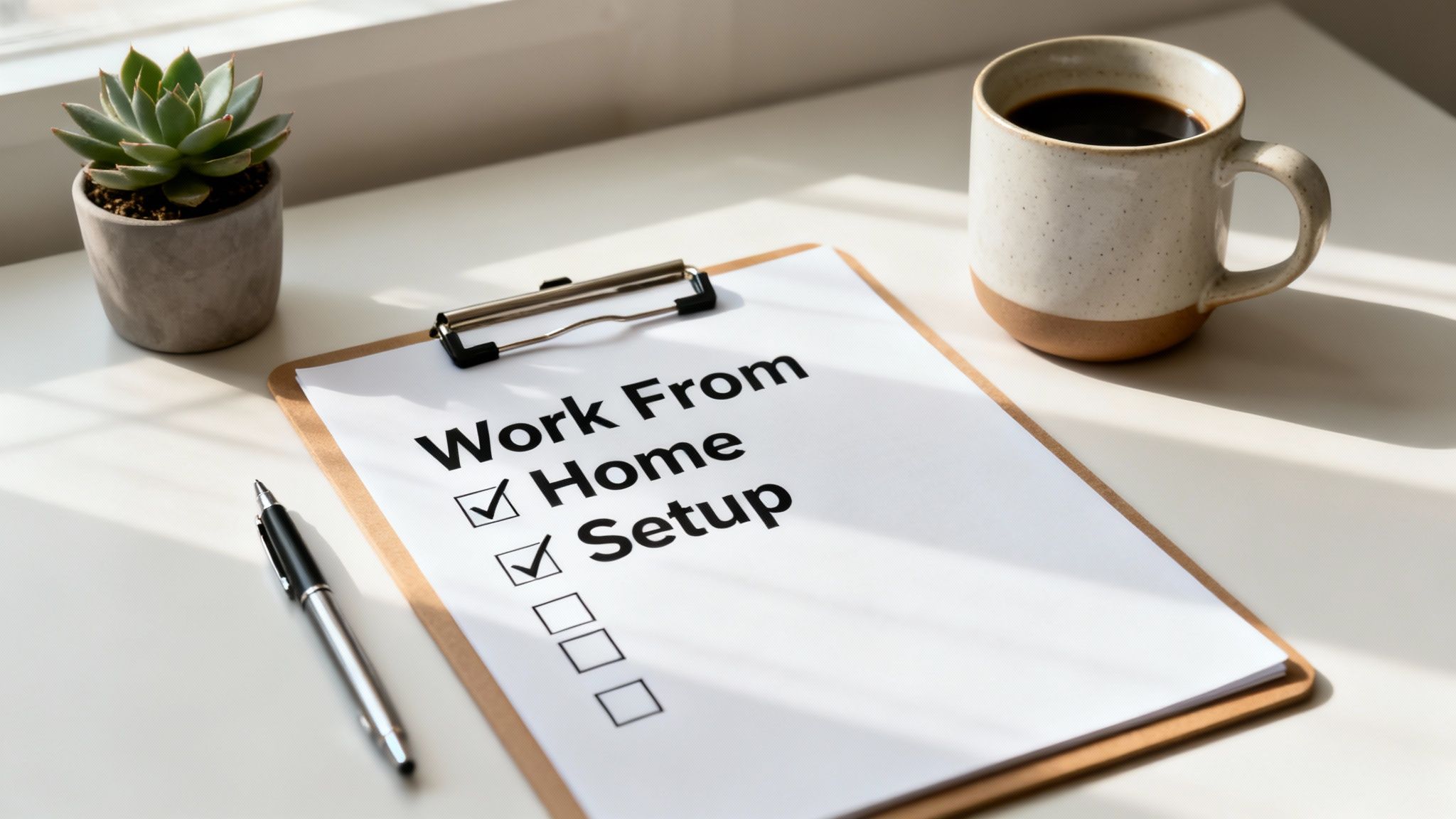
Alright, we've covered a lot of ground. To pull it all together, I’ve put together a straightforward checklist that hits all the major points from this guide.
Think of this as your final action plan. You can use it to take stock of your current setup and identify what’s missing, or follow it from the start if you're building a new workspace from scratch.
Ergonomics and Physical Space
Let’s be honest: if you're not comfortable, you're not going to be productive. Aches and pains are absolute focus killers, so getting the physical fundamentals right is non-negotiable.
- Ergonomic Chair: Make sure it has fully adjustable lumbar support, seat depth, and armrests. This is your most important investment.
- Proper Desk Height: Your elbows should rest comfortably at a 90-degree angle, whether you're sitting or standing.
- Monitor Positioning: The top of your screen should be at or just below eye level, and about an arm's length away. No more craning your neck.
- Good Lighting: Maximize natural light if you can, and add a good desk lamp to prevent eye strain, especially during those late-night work sessions.
Remember, the best equipment is useless without good habits. Integrate the 20-20-20 rule—every 20 minutes, look at something 20 feet away for 20 seconds—and take short stretch breaks every hour. Your body will thank you.
Technology and Connectivity
Your tech stack is basically your digital office. When it comes to your tools, reliability is everything. You want them working for you, not against you.
- Stable Internet: Don't settle for less than 100 Mbps download speed. Whenever you can, plug directly into your router with an Ethernet cable for important meetings or big file transfers.
- External Webcam and Mic: Moving beyond your laptop's built-in options is one of the fastest ways to look and sound more professional online.
- Noise-Canceling Headphones: These are a lifesaver. Create your own little focus bubble and tune out the barking dogs, leaf blowers, and other household chaos.
Software and Security
Finally, a clean and secure digital environment is what keeps your workflow moving and your—and your company's—data safe.
- Project Management Tool: Get your tasks out of your head and into a system. Platforms like Asana or Trello are great for keeping everything organized.
- Secure Wi-Fi: The first thing you should do is change your router's default password to something strong and unique. It's a simple step that makes a big difference.
- VPN and Password Manager: These are your digital bodyguards. A VPN protects your privacy, and a password manager secures your credentials without you having to remember dozens of complex passwords.
Got Questions? We’ve Got Answers.
As you start piecing together your ideal workspace, some common questions always seem to pop up. Let's tackle them head-on with some practical, real-world advice to get your setup dialed in.
How Much Is This Work-from-Home Setup Going to Cost Me?
Honestly, the cost can swing wildly depending on what you need and how resourceful you are. You can absolutely pull together a solid, functional setup for around $300-$500, especially if you get savvy with secondhand finds.
If you’re looking to invest in better ergonomics—think a high-quality chair and maybe a second monitor—you’re probably looking at a budget between $800 and $1,500. For professionals needing serious tech power, like designers or developers who need 4K displays and specialized gear, costs can easily climb past $2,500.
Don't forget to ask about a remote work stipend! Many companies offer one to help cover these exact costs.
What if I Don’t Have a Spare Room for an Office?
No dedicated room? No problem. You can still create an incredibly effective work zone in a shared space. The real trick is creating a sense of separation.
Pick a low-traffic corner in your living room or bedroom and claim it as your own. A simple folding screen or even a well-placed bookshelf can work wonders to create a physical and mental boundary. This small trick helps you shift into work mode when you step into your "office" and, just as crucially, helps you unplug when you step away.
If you’re going to splurge on one thing, make it an excellent ergonomic chair. You'll spend thousands of hours sitting there. A great chair isn't a luxury; it's a tool that protects your back, prevents pain, and keeps you focused. It’s the true foundation of any productive home office.
Ready to find a remote job at a company that actually cares about your setup and well-being? RemoteWeek curates listings from top-rated, employee-first tech companies. Find a workplace that will help you thrive. Start your search for a high-quality remote role today at https://www.remoteweek.io.